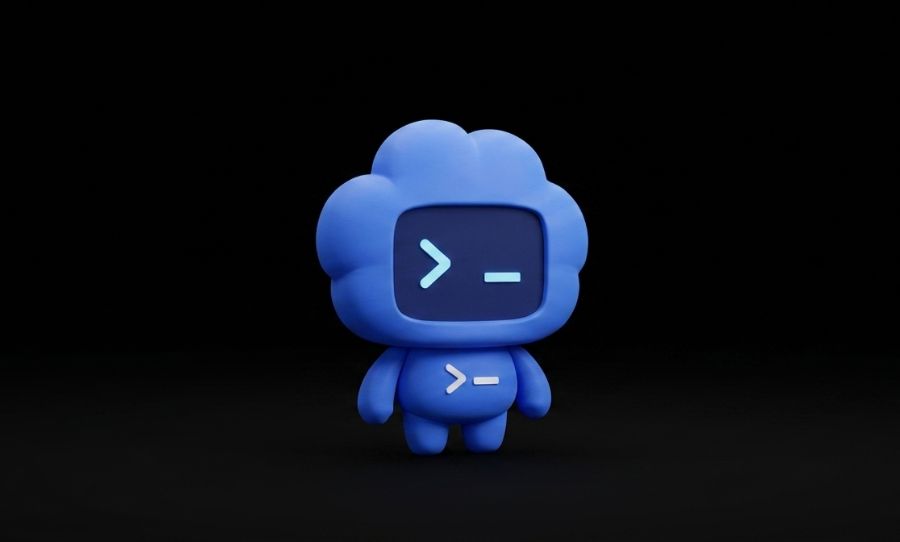
OpenAI’s Codex now has desktop “pets” that track AI tasks in real time, here’s how they work and how to use them.
It sounds like just another vibe coding gimmick at first, but OpenAI’s latest update to Codex adds something surprisingly practical: desktop “pets” that act as live status trackers while your AI works in the background.
If you’ve ever kicked off a long coding task and then sat there wondering if it’s frozen, finished, or waiting on you – this is designed to fix exactly that.
So what are Codex Pets? Think of them as small animated overlays that sit on top of your screen while Codex runs. Instead of checking logs or tabs, you get a glanceable visual cue.
They move around, react, and – most importantly – change behaviour depending on what the AI is doing.
If the agent’s actively working, your pet looks busy. If it hits a wall or needs permission, you’ll see a little red clock icon. When everything’s done, it switches to a green tick or a satisfied animation.
It’s low effort, but it means you don’t have to babysit the process.
There are eight default options so far, and they’re all pulled from classic dev culture:
- A crab (a nod to Rust)
- A snake (Python, obviously)
- A beaver (adjacent to Go’s gopher mascot)
- Clippy (yes, that Clippy)
- A rubber-duck-inspired companion
- Plus a few more in the same vein
It’s very inside-baseball, but that’s kind of the point.
You can also make your own, and this is where it gets interesting. Codex includes a “hatch-pet” feature that lets you generate a custom companion from a prompt.
You can go simple – like “tiny friendly dragon” – or get weirdly specific, like building one based on your coding habits.
People are already making everything from anime characters to cursed internet mascots, which feels inevitable.
To turn them on – if you’re using the Codex desktop app (Mac or Windows), it’s straightforward:
- Type /pet in the composer
- Or head to Settings → Appearance → Pets
- Use Cmd/Ctrl + K to summon or hide it quickly
Once it’s active, it just hangs out while your tasks run.
Why this actually exists, and why it’s not just a cute add-on – it’s tied to how AI tools are evolving.
As coding agents become more “agentic” (handling multi-step tasks on their own), you’re spending less time actively interacting and more time waiting for results.
The pet basically replaces the need to monitor a stream of logs or progress bars.
It’s a small UX shift, but a smart one: less friction, more visibility, no extra effort.
And if you’re going to have an AI working in the background, you may as well give it a little mascot while it does it.